PCE TW GUI MODULE — Operation Handbook
Purpose: Operation handbook for features already in the account (first-time setup, day-to-day steps, CSV template downloads)
In-account copy: PCE GUI Portal → Help → User guide (includes direct template downloads)
繁中:使用說明
Related API docs: Integration guide · Technical notes
1. Product overview
PCE TW GUI MODULE (Publisher: com.netsuite, Project ID: pceguitw) is a SuiteCloud SDF SuiteApp for Taiwan VAT / purchase (AP) invoice capture, validation, and integration inside NetSuite.
Delivered capabilities:
| Module | What it does |
|---|---|
| Business info | Taxpayer master (tax ID, address, subsidiary, AP / AR feature flags) |
| Tax type mapping | Map PCE tax types 1 / 2 / 3 to NetSuite (NS) tax codes (required before AR issue) |
| AP invoice records | PCE AP Invoice on Vendor Bill / Expense Report (ER) / Vendor Credit (VC) / Vendor Prepayment (VP), or stand-alone |
| AP CSV | Upload / paste, max 100 rows; Validate only dry run |
| AP Write API | IT / vendor integration (§5.4) |
| Invoice books | Search / adjust allocation, manual create, CSV import (31 / 32 / 35) |
| Issue AR invoice / allowance | Single / merge, allowance, net invoice; header button or search page |
| Background auto-issue (invoice) | Queue multiple invoices (35-07 + platform upload); progress page (§5.8) |
| Void AR invoice / allowance | Suitelet lists issued AR masters; void or void-and-reissue (§5.7) |
| VAT media files | Download input/output TXT and zero-rate T02 for a business and bi-monthly period (§5.9) |
| Custom item lines | Rewrite issue lines on Invoice / Credit Memo (CM) PCE Sales tab; issue merges same item + unit price + tax type + description |
| Navigation | Top PCE GUI (Classic Center / BASIC) |
In-account handbook and templates: PCE GUI Portal → Help → User guide. Scope and phasing: 銷項藍圖 (ZH).
How to use this handbook
- New accounts: finish §4 First-time setup (business info → tax mapping → tax IDs → books).
- Before any CSV import, download files from §1.1 Templates, edit in Excel, Save As CSV UTF-8.
- Day-to-day AP: §5.1–5.3. Day-to-day AR: §5.5–5.8.
- The in-account handbook downloads the same templates; you do not need to hunt them on each page.
1.2 Flow overview
The in-account PCE GUI Portal → Help → User guide uses the same structure (CSS flowcharts, no extra plugins).
flowchart TB
  deploy[Deploy SuiteApp] --> setup[First-time setup §4]
  setup --> ap[AP day-to-day §5.1–5.3]
  setup --> ar[AR day-to-day §5.0–5.7]
  setup --> book[Invoice books §5.6]
  ar --> void[Void §5.7]
  book --> ar
流程圖原文
1.3 Terms and abbreviations
Expanded names for abbreviations used in this handbook and flowcharts. In the in-account PCE GUI Portal → Help → User guide, §1.3 is a plain reference table; elsewhere, hover dotted-underline abbreviations for the same explanations:
| Abbr. | Full name | Notes |
|---|---|---|
| SEUI | Sales Exempt from Uniform Invoices | System prefix for format 36; plus 10-digit timestamp = 14 characters (e.g. SEUI4567890123) |
| NS | NetSuite | This ERP platform; e.g. “NS tax code mapping” or “NS → value-added center upload” |
| AP | Accounts Payable (Purchases) | Purchase / input VAT side in this SuiteApp |
| AR | Accounts Receivable (Sales) | Sales / output VAT; issue invoice or allowance |
| VB | Vendor Bill | Accounts payable invoice transaction |
| ER | Expense Report | Employee expense report |
| VC | Vendor Credit | Vendor credit memo |
| VP | Vendor Prepayment | Vendor prepayment |
| CM | Credit Memo | Customer credit memo; source document for allowances |
| CSV | Comma-Separated Values | Spreadsheet text file; save as CSV UTF-8 in Excel |
| invCatCode | Invoice Category Code | Category 01–08; required for formats 21 / 25 / 31 / 32 / 35 |
| OAuth | Open Authorization | Authorization for AP Write API integration (IT setup) |
| M2M | Machine-to-Machine | OAuth client-credentials flow without user login |
Screens at a glance
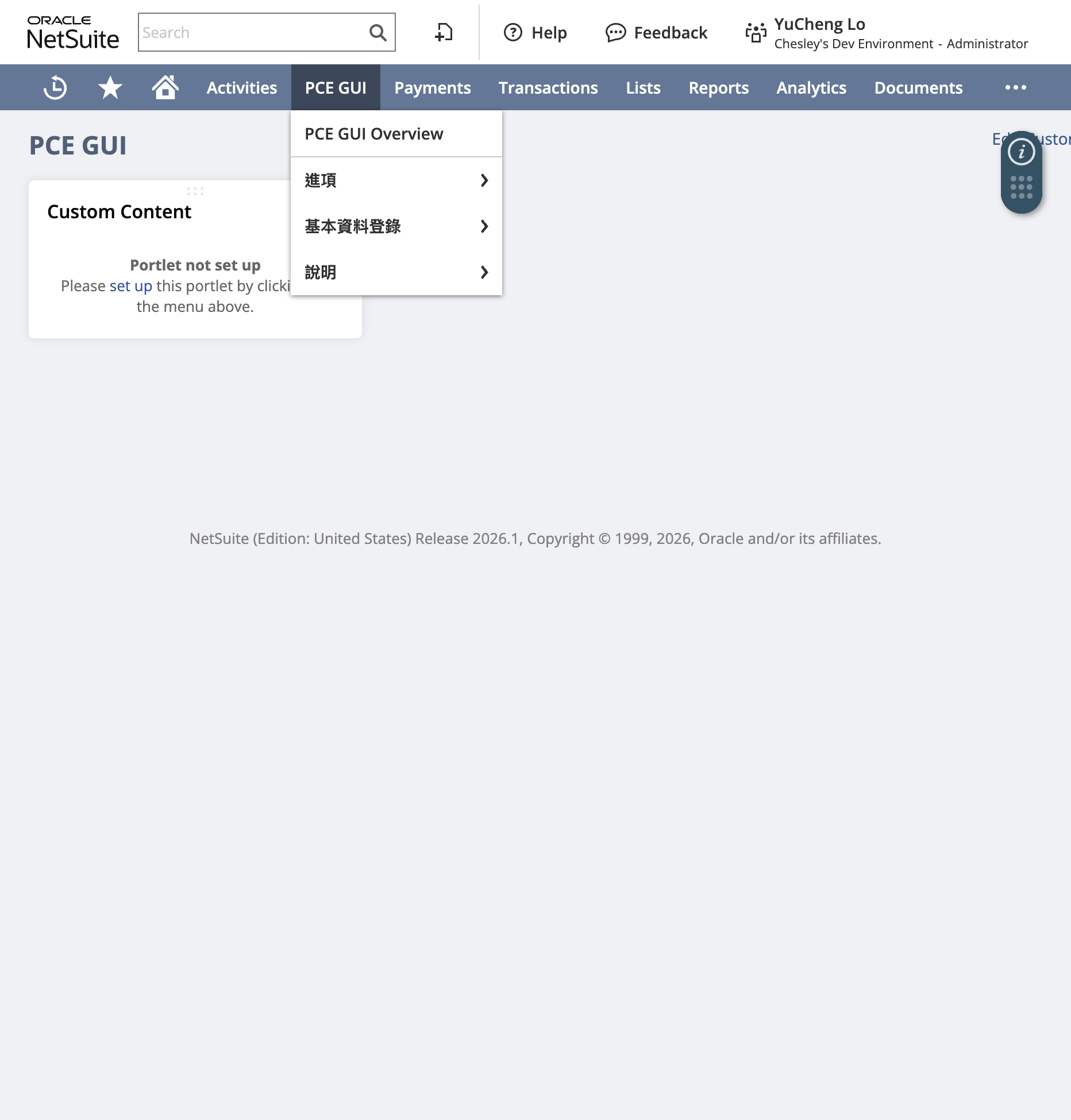
Figure: Top PCE GUI menu (Help / Module Settings / Purchases / Sales).
1.1 Template downloads
Replace sample tax IDs, tracks, and amounts. Max 100 rows. Prefer Validate only first.
In account: PCE GUI Portal → Help → User guide → Download templates. Each module page offers the same files.
| Use | In-account handbook | Project sample | Used on |
|---|---|---|---|
| AP CSV template | ?action=template&kind=ap | ap-invoice-import-sample.csv | Purchases → AP CSV Import |
| AP field guide | ?action=guide&kind=ap | ap-invoice-import-field-guide.csv | Same |
| AP invCatCode map | ?action=invcatmap&kind=ap | ap-invCatCode-erp-mapping.csv | Same |
| Invoice-book CSV | ?action=template&kind=arbook | ar-invoice-book-import-sample.csv | Module Settings → Invoice books → CSV |
| Book field guide | ?action=guide&kind=arbook | ar-invoice-book-import-field-guide.csv | Same |
| Book invCatCode map | ?action=invcatmap&kind=arbook | ar-invCatCode-mapping.csv | Same |
IT / integration also uses docs/postman/ (AP Write) and the integration guide.
2. Prerequisites
2.1 NetSuite features
Declared in manifest.xml:
| Feature | Required |
|---|---|
| Custom Records | Yes |
| Server SuiteScript | Yes |
| Subsidiaries | Yes |
| Accounting | Recommended for transaction flows |
2.2 Permissions & roles
Most script deployments use All Roles (internal roles). In practice, grant at least:
- Custom record access: PCE Business Info, PCE AP Invoice (and lookup tables if users maintain them)
- Transaction access: Vendor Bill / Expense Report / Vendor Credit / Vendor Prepayment (as needed)
- Suitelet / RESTlet: CSV import page; AP Write (integrations also need Integration + tokens)
2.3 Deploy (developers / consultants)
# Dev account (suitecloud auth configured)
npm run deploy:sdf

# Customer prod / UAT (lock top-level objects, hide server code, account guard)
npm run deploy:sdf:customer
- Application ID:
com.netsuite.pceguitw - After deploy, an install script seeds lookup-table instances (skips existing names; safe to re-run)
- Customer lock/hide scope and allowlist: 客戶帳部署
3. SuiteApp inventory
3.1 Navigation (Center)
| Script ID | Type | Label |
|---|---|---|
custcentertab_pce_gui | Center Tab | PCE GUI (center=BASIC / Classic Center, allroles=T; overview Script Portlet enabled) |
custpubdashboard_pce_gui | Published Dashboard | PCE GUI overview with SuiteApp User Guide portlet (Administrator / Full Access; existing users may need Publish / Personalize once) |
custcentercategory_pce_workbench | Category | Feature entry → PCE GUI Portal (customscript_pce_sl_workbench; sidebar + iframe) |
custcentercategory_pce_basic_data | Category | Module Settings (module settings / business info / invoice book profile). Tax mapping and invoice book management are in PCE GUI Portal |
custcentercategory_pce_ap | Category | Purchases (AP) — PCE AP data. Portal does not list it. CSV import or API intake review is in PCE GUI Portal |
custcentercategory_pce_ar | Category | Sales (AR) — PCE AR data. Issue, background issue, and void are in PCE GUI Portal → Sales. Upload monitor and errors are in PCE GUI Portal → Value-added center |
PCE GUI → Feature entry → PCE GUI Portal
- Centered on the top row, the page shows the mapped module-setting Name, that row’s NetSuite Account ID, user, and role:
測試區 (TD2905095) | 使用者: … | 角色: …. The name is the Name on the module system setting mapped to this account (正式區 or 測試區). When nothing is mapped, the name is — and no account id is shown. - Purchases appears only when 進項功能 (
custrecord_pce_modsys_ap_feature) is checked on the mapped module system setting. Sales appears only when 銷項功能 (custrecord_pce_modsys_ar_feature) is checked. VAT filing → Input, output, and zero-rate appears only when 產報稅檔功能 (custrecord_pce_modsys_taxfile_feature) is checked. An unchecked feature hides that menu group. Check suiteTax (custrecord_pce_modsys_suite_tax) only on a SuiteTax account. When it is checked, sales reads tax from Tax Details, and purchases plus transaction create write tax onto Tax Details instead oftax1amt. Leave it unchecked for Legacy Tax. Keep the existing tax mapping. Do not map SuiteTax tax codes separately. - Single page for most PCE tools (help, module settings, AP, AR, value-added center, etc.); the right iframe loads each Suitelet.
- ☰ collapses or expands the sidebar: expanded shows full labels; collapsed leaves only ☰ (menu hidden—expand before switching features). Tooltip: “收合選單” / “展開選單” (Traditional Chinese UI strings).
- In-page tabs (invoice book, void, background issue, etc.) switch inside the iframe without a full reload.
- Most Sales tools share a collapsible filter card. Background auto-issue and Void AR invoice / allowance use a unified workbench card (tabs in the card header; filters embedded in the card). Issue list and invoice book still use the legacy tab + filter layout. See PCE GUI Portal — 銷項內頁 UI(查詢條件/workbench).
PCE GUI Portal → Help → User guide
- Suitelet (AP / invoice-book CSV templates; the PCE GUI overview portlet still shows a summary)
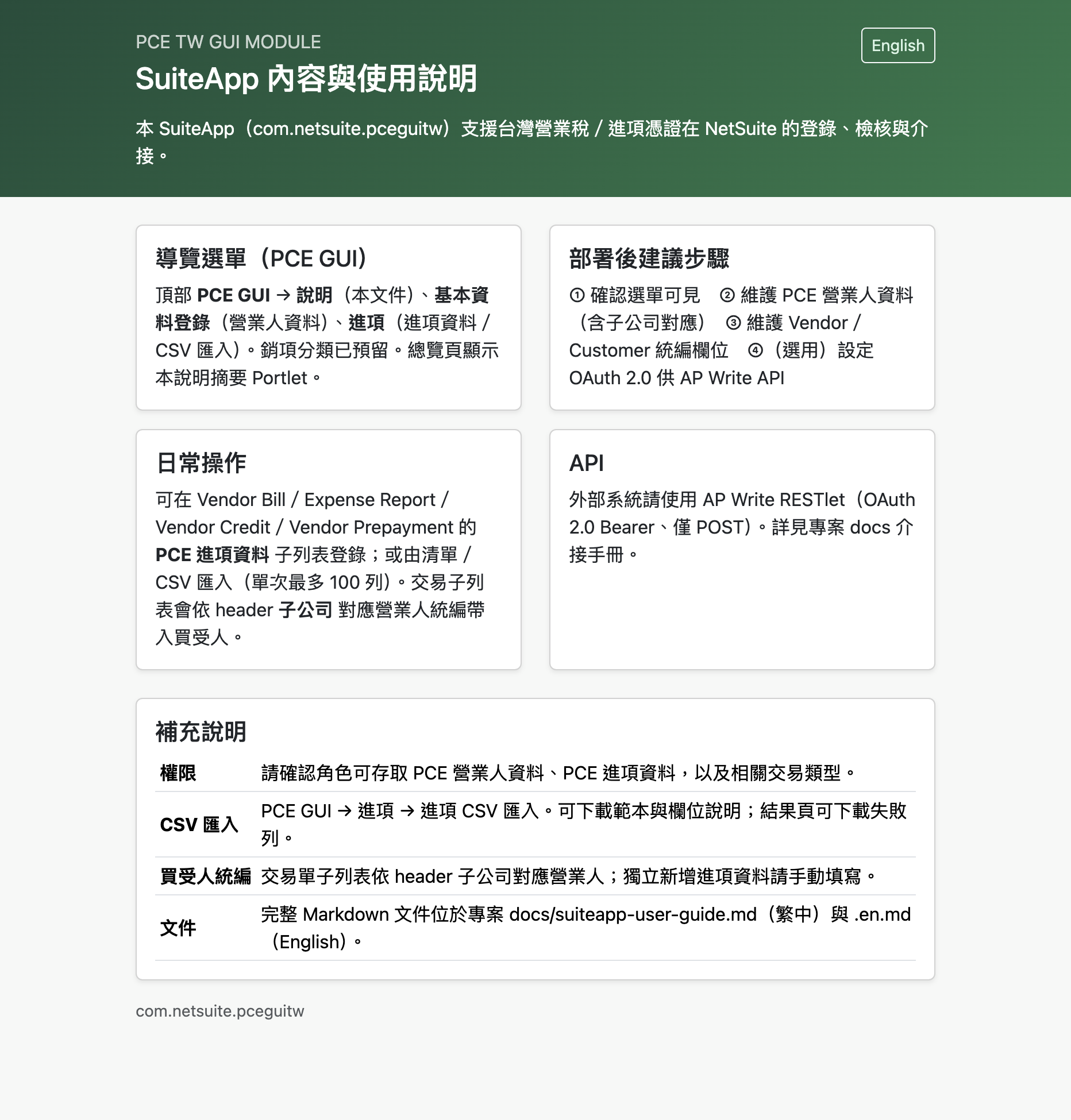
Figure: Full guide page under Portal Help → User guide.
PCE GUI → Module Settings
- PCE Business Info →
customrecord_pce_business_info - Invoice book profile →
customrecord_pce_ar_book_profile - Tax mapping and invoice book management → PCE GUI Portal → Module Settings
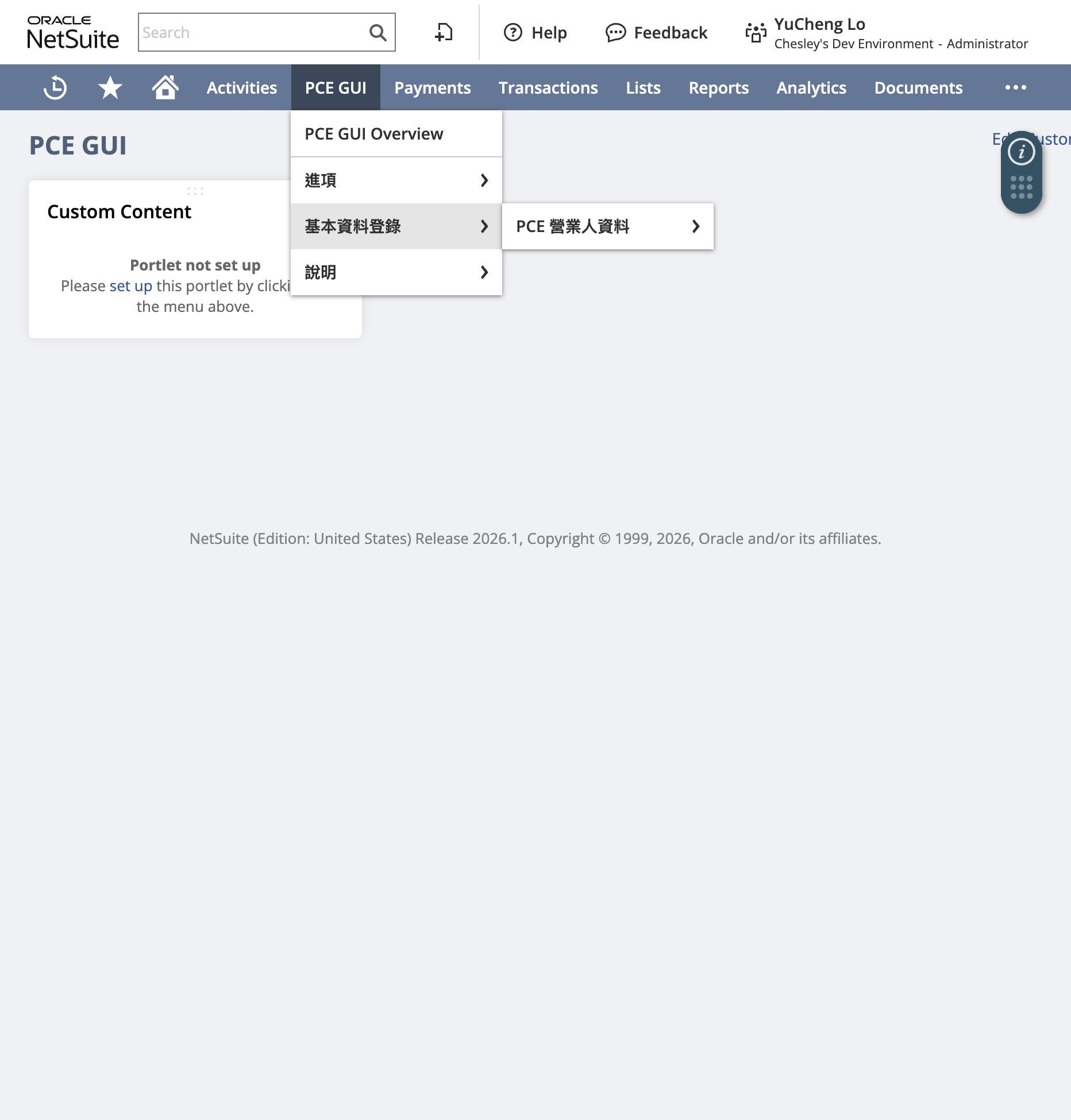
Figure: PCE GUI → Module Settings → PCE Business Info.
PCE GUI → Purchases (AP)
- PCE AP Invoices →
customrecord_pce_ap_invoice(center tab. PCE GUI Portal does not list it) - AP CSV Import → PCE GUI Portal → Purchases when 進項功能 is checked (
customscript_pce_sl_ap_csv_import)
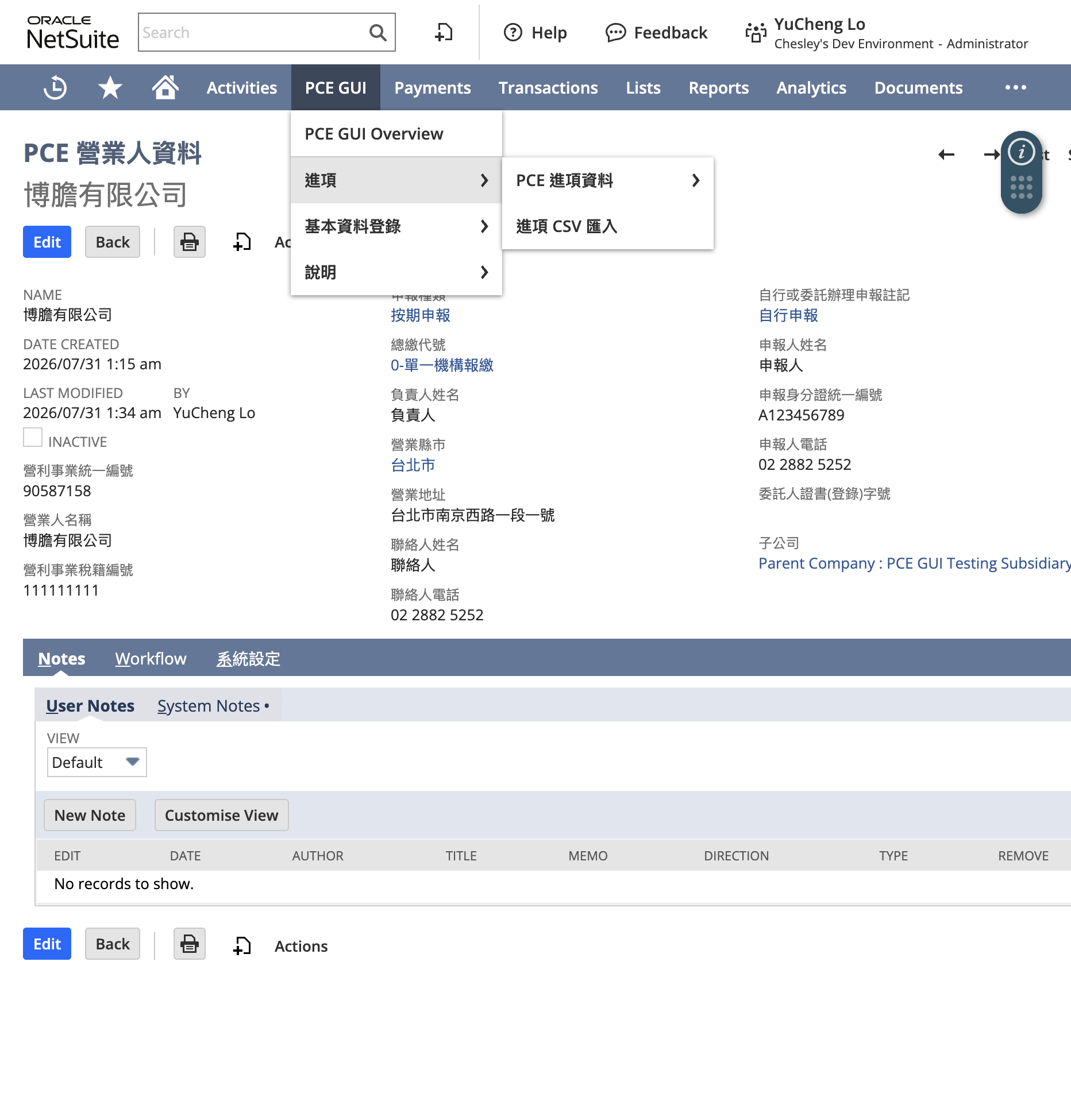
Figure: PCE GUI → Purchases (AP invoices / CSV import).
(UI labels in the account may appear in Traditional Chinese depending on localization.)
PCE GUI → Sales (AR)
- PCE AR Invoice Data →
customrecord_pce_ar_invoice - Issue, background issue, and void → PCE GUI Portal → Sales
- Upload monitor and upload errors → PCE GUI Portal → Value-added center
- Uploaded TXT and downloaded ACK files are kept in the File Cabinet folder PCE 加值中心交換檔 and linked from the upload log. The upload monitor can open them.
3.2 Business custom records
| Script ID | Purpose | |
|---|---|---|
customrecord_pce_business_info | Taiwan VAT taxpayer / business profile | |
customrecord_pce_biz_sys_setting | Feature flags under business info (AP/AR/filing, etc.) | |
customrecord_pce_ap_invoice | Purchase invoice detail (optional transaction link) | |
customrecord_pce_ap_write_log | AP import log | Audit trail for each CSV/API write |
customrecord_pce_ar_invoice | PCE AR invoice / allowance master; status and upload status — see §3.2.1. Form: Basic includes date created and last modified; Credited holds credited amounts and remaining allowance; Void includes void-and-reissue | |
customrecord_pce_ar_invoice_line | AR line items under master | |
customrecord_pce_ar_custom_line | Custom issue lines on Invoice / Credit Memo (PCE 銷項 tab) | |
customrecord_pce_ar_invoice_book | Invoice book (track / period / allocation profile) | |
customrecord_pce_ar_book_import_log | Invoice book import job log | |
customrecord_pce_mof_track | MOF invoice track letters |
3.2.1 AR master: lifecycle vs upload (not the same as transaction body)
PCE AR Invoice Data and Invoice / Credit Memo body each have their own “status” fields.
| Layer | Field | List | Role |
|---|---|---|---|
| Master | custrecord_pce_ar_status | customlist_pce_ar_status | Document lifecycle: draft / issued / void / cancelled. Successful issue sets issued (not draft). |
| Master | custrecord_pce_ar_upload_status | customlist_pce_ar_upload_status | Upload lifecycle: pending / in progress / failed / success / skipped. On issue: Upload on the confirm form → pending; Do not upload (paper 31/32, 35 no upload, 36, etc.) → skipped, so void gate passes without manual edits. E-invoice void still requires success after Phase 3 jobs or manual update. |
| Master | custrecord_pce_ar_upload_error_msg | Long Text | Upload / integration error text; cleared on successful issue. |
| Transaction | custbody_pce_ar_inv_status | customlist_pce_ar_inv_status | NS Invoice / CM invoice upload / issue status. Issue: upload → issued pending upload; no upload → issued, not via NS upload. Void: skipped master → voided, not via NS upload; else voided pending upload. Phase 3 upload / ACK will set issued uploading / issued but upload failed, check the error message / issued and uploaded to platform and the matching voided … values. |
| Transaction | custbody_pce_ar_error_msg | Long Text (read-only) | Invoice error message on Invoice / Credit Memo / Customer Deposit (PCE AR subtab): background auto-issue failure (Invoice only), or—in Phase 3—VAC upload failure text with an upload failed status. Cleared on successful issue, re-queue, Make Copy, void-and-reissue, or when the upload is resent. |
3.3 Lookup / code tables
Seeded by customscript_pce_sl_install_lookup on install:
| Script ID | Purpose | Seeded rows |
|---|---|---|
customrecord_pce_doc_format_code | Document format codes (AP 21–29, 10 rows; AR 31–36; 21/31/32/35 split ×2; invoice category 01–08) | Yes |
customrecord_pce_tax_type | Tax type | Yes |
customrecord_pce_deduction_code | Deduction code | Yes |
customrecord_pce_summary_mark | Summary / allocation mark | Yes |
customrecord_pce_customs_mark | Customs mark | No default AP rows |
customrecord_pce_export_decl_cat | Export declaration category (G3, G5, D1, D5, B1, B2, B8, B9, F4, F5) | Yes |
customrecord_pce_zero_rate_mark | Zero-rate mark | No default AP rows |
customrecord_pce_city | City codes | Lookup |
customrecord_pce_filing_type | Filing type | Lookup |
customrecord_pce_filing_mark | Self / agent filing mark | Lookup |
customrecord_pce_consol_code | Consolidation code | Lookup |
Display names typically use code - description (e.g. 21 - …).
3.4 Entity custom fields (Vendor / Customer)
| Script ID | Label (ZH) | Applies to |
|---|---|---|
custentity_pce_vendor_tax_id | Vendor tax ID | Vendor |
custentity_pce_vendor_invoice_title | Vendor invoice title | Vendor |
custentity_pce_vendor_reg_addr | Vendor registered address | Vendor |
custentity_pce_cust_tax_id | Buyer tax ID | Customer |
custentity_pce_cust_invoice_title | Buyer invoice title | Customer |
custentity_pce_cust_reg_addr | Buyer registered address | Customer |
Usually shown on the PCE e-Invoice entity subtab (custtab_pce_einvoice).
3.5 Transaction subtab
| Script ID | Title | Type |
|---|---|---|
custtab_pce_trx_einvoice | PCE AP Invoice Data | Transaction |
custtab_pce_trx_ar_einvoice | PCE 銷項 | Transaction (Invoice / Credit Memo body fields + custom item lines) |
Hosts the AP invoice sublist on AP transactions; AR tab hosts issue flags and optional custom lines (customrecord_pce_ar_custom_line).
3.5.1 Invoice / Credit Memo body fields (PCE 銷項)
| Script ID | Label | Notes |
|---|---|---|
custbody_pce_ar_issue_invoice | Issue invoice / allowance | Synced from Module system settings Account mapping + per-subsidiary effective AR flag (see below) |
custbody_pce_ar_use_custom_lines | Use custom item lines | When checked, issue reads custom lines sublist, not transaction items |
custbody_pce_ar_inv_status | Invoice / allowance status | List customlist_pce_ar_inv_status on the transaction; distinct from master upload status — §3.2.1 |
custbody_pce_ar_error_msg | Invoice error message | Invoice / Credit Memo / Customer Deposit (read-only); background issue or Phase 3 upload failure — §3.2.1 |
custbody_pce_ar_main_remark | Main remark (總備註) | Invoice / Credit Memo / Customer Deposit; max 200 chars; prefills Invoice remarks on confirm-issue from transaction URL; saved to AR header main remark on issue |
AR feature and custbody_pce_ar_issue_invoice
- Account not mapped to Production/Test, no PCE business info for the transaction subsidiary, or AR disabled per effective settings: field disabled, unchecked, no issue button on the transaction; issue/void/book Suitelets reject POST.
- AR enabled and customer (entity) set: checked automatically on create and copy. If the user clears it, a screen save and a later edit do not check it again. Changing the customer or subsidiary still recalculates the box.
- AR enabled but no customer: unchecked.
- Already issued (invoice/allowance no. or status): no issue button (unchanged).
Opening issue from a transaction URL shows an explicit message if AR is disabled for that subsidiary. A one-time Map/Reduce to clear stale checkboxes on old transactions is not shipped yet (planned optional cleanup).
The Issue button appears only on Invoice / Credit Memo View (not Edit), so issue always reads saved custom lines and header totals. Save the transaction, open View, then issue—or use the AR issue Suitelet list.
Key body field: custbody_pce_ar_use_custom_lines (Use custom item lines). When checked, issue reads the PCE 銷項自訂商品明細 sublist (customrecord_pce_ar_custom_line), not transaction items.
Custom sublist fields include:
| Field | Script ID | Notes |
|---|---|---|
| Item | custrecord_pce_ar_cstmline_item | Seeded from source item when the box is first checked |
| Description / qty / unit / price / amount | …_description etc. | Untaxed amount. Amount 0 products are still issued. Description, subtotal, and group rows with amount 0 are skipped |
| Tax amount | custrecord_pce_ar_cstmline_tax_amount | Line tax sum must match header taxtotal |
| Tax type | custrecord_pce_ar_cstmline_tax_type | PCE tax type record (1 / 2 / 3) |
| Line remark | custrecord_pce_ar_cstmline_remark | Max 120 chars; can be seeded from item column |
Untaxed and tax totals must match the NetSuite header (tolerance 0.02). On save, if all line taxes are empty, the system derives tax from tax type (5% for taxable) and aligns to the header.
3.5.2 Invoice / Credit Memo item column
| Script ID | Label | Notes |
|---|---|---|
custcol_pce_ar_line_remark | Line remark | Sales item column (max 120 chars). Seeded into custom line 明細備註 when Use custom item lines is checked and the sublist is empty |
3.6 Scripts
| Script ID | Type | Role |
|---|---|---|
customscript_pce_ue_apinv_default | User Event | Validate AP invoice before submit (non-UI paths) |
customscript_pce_cs_ap_invoice | Client | Field behavior on AP invoice form |
customscript_pce_cs_trans_ap_sublist | Client | Sublist logic on VB / ER / VC / VP |
customscript_pce_rl_ap_write | RESTlet | AP Write API |
customscript_pce_sl_ap_csv_import | Suitelet | AP CSV import UI |
customscript_pce_sl_ar_issue | Suitelet | Issue AR invoice / allowance (search NS Invoice / Credit Memo) |
customscript_pce_sl_ar_void | Suitelet | Void AR invoice / allowance (search issued AR masters) |
customscript_pce_sl_ar_book_csv_import | Suitelet | Invoice book management UI (CSV / manual / search) |
customscript_pce_mr_ar_book_import | Map/Reduce | Invoice book background create job |
customscript_pce_mr_ar_book_alloc_update | Map/Reduce | Invoice book allocation bulk update job |
customscript_pce_ue_ar_book_default | User Event | Default book status 0 on create |
customscript_pce_sl_install_lookup | Suitelet (install) | Seed lookup data |
customscript_pce_sl_ap_write_smoke | Suitelet | Smoke test helper |
customscript_pce_sl_ap_write_smoke_inst | Install-related | Smoke install helper |
3.7 File Cabinet (main paths)
SuiteApps/com.netsuite.pceguitw/
├── ap/
│   ├── clientscripts/
│   ├── libraries/      # CSV, validation, payload, write log, …
│   ├── restlets/       # AP Write RESTlet
│   ├── suitelets/      # CSV Import, smoke
│   └── userevents/
└── common/             # Tax ID helpers, MOF track data, …
4. Post-install setup
Recommended order:
flowchart TD
  A[A Confirm menu] --> B[B Business info]
  B --> B2[B2 Tax type mapping]
  B2 --> C[C Vendor / Customer tax ID]
  C --> D[D Import or create invoice books]
  D --> E{Need API integration?}
  E -->|Yes| F[F OAuth + AP Write]
  E -->|No| done[Ready for day-to-day]
  F --> done
流程圖原文
Step A — Confirm navigation
- Refresh NetSuite (or switch role/center and return).
- Confirm the PCE GUI tab appears.
- Open:
- PCE GUI Portal → Help → User guide (handbook and template downloads)
- Module Settings → PCE Business Info, Invoice book profile (center tab). Tax type mapping and Invoice book management are in PCE GUI Portal
- Purchases → PCE AP Invoices (center tab). Portal does not list AP invoices. Portal shows AP CSV Import when 進項功能 is checked
- Sales (AR) → PCE AR Invoice Data, Issue AR invoice / allowance
If the tab is missing: check Classic Center role, tab audience, and More menus.
Optional on Module system settings → Issue line description source (custrecord_pce_modsys_desc_src): the saved-search field ID used as the item description when issuing an Invoice or Credit Memo. Leave blank to use the line description (memo), then the item name when that is blank. Allowed values are lowercase memo, item, a custcol_ line field, or item.fieldId (for example item.salesdescription). Do not enter description; that UI field is memo in search. An invalid value cannot be saved. Custom item lines and customer deposits do not use this field.
Optional check boxes Bind department and Bind class (custrecord_pce_modsys_bind_dept, custrecord_pce_modsys_bind_class): when checked, the issue confirmation page copies the source transaction’s department or class and uses it to allocate an invoice book. You can still pick another value on that page. When unchecked, a blank value uses a book that is not limited to a department or class.
Optional Force VAT file background (custrecord_pce_modsys_vat_force_bg, unchecked by default): when checked, the input/output TXT and zero-rate T02 always build in the background. When unchecked, up to 20,000 rows on one side download immediately, and a larger side waits for a background job.
Optional long text Extra search fields (custrecord_pce_modsys_extra_flt): add Invoice header filters under the existing issue-list criteria, including background issue. One field per line, up to 8, lowercase. Format: fieldId|sourceFrom|label, with an optional fourth segment for help text under the control. sourceFrom is the record type or list ID used to fill the dropdown, for example location|location|Location. A class filter uses the record type classification. Leave sourceFrom blank for a text, date, or checkbox field. Leave a dropdown at All to skip that filter. Do not enter custcol_ line fields, joins such as item.fieldId, or the built-in tax ID, customer, department, class, document number, and date filters. An invalid line cannot be saved. If sourceFrom cannot be searched, that dropdown has no options and the rest of the page still loads.
Step B — Maintain business (taxpayer) info
- PCE GUI → Module Settings → PCE Business Info → New
- Enter at least:
- Business tax ID (8 digits)
- Business name
- Other filing fields as required (tax registration no., address, contacts/filer, etc.)
- For OneWorld, maintain subsidiary linkage as needed.
- Review system settings under the business record and enable AP and AR flags. AR issue requires the AR flag.
Step B2 — Map NetSuite tax codes
- PCE GUI → Module Settings → Tax type mapping
- For tax types 1 (taxable) / 2 (zero-rated) / 3 (exempt), select the matching NetSuite tax codes (multi-select allowed).
- Save. Custom item lines and AR issue use this map; unmapped tax codes block issue.
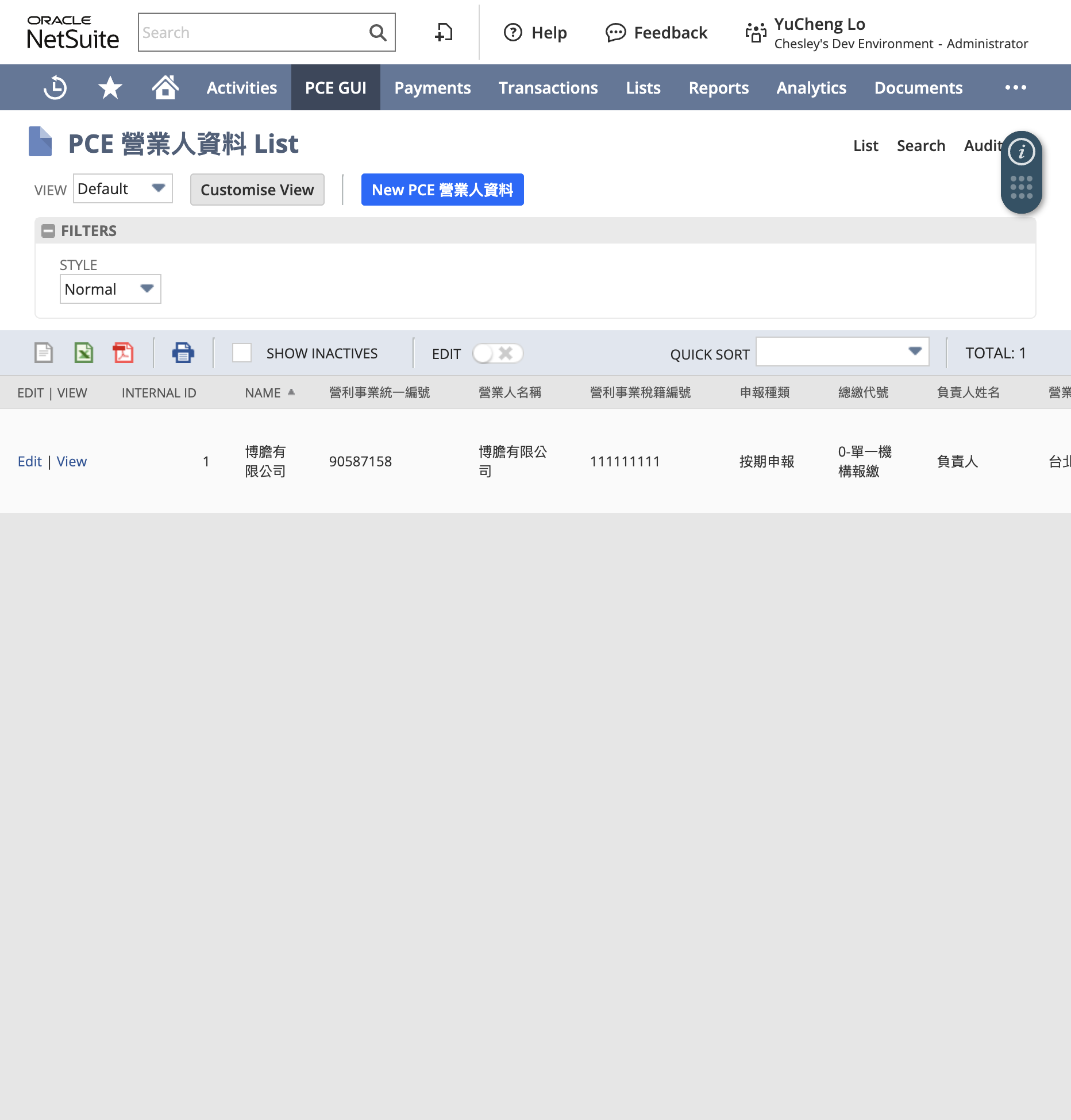
Figure: PCE Business Info list.
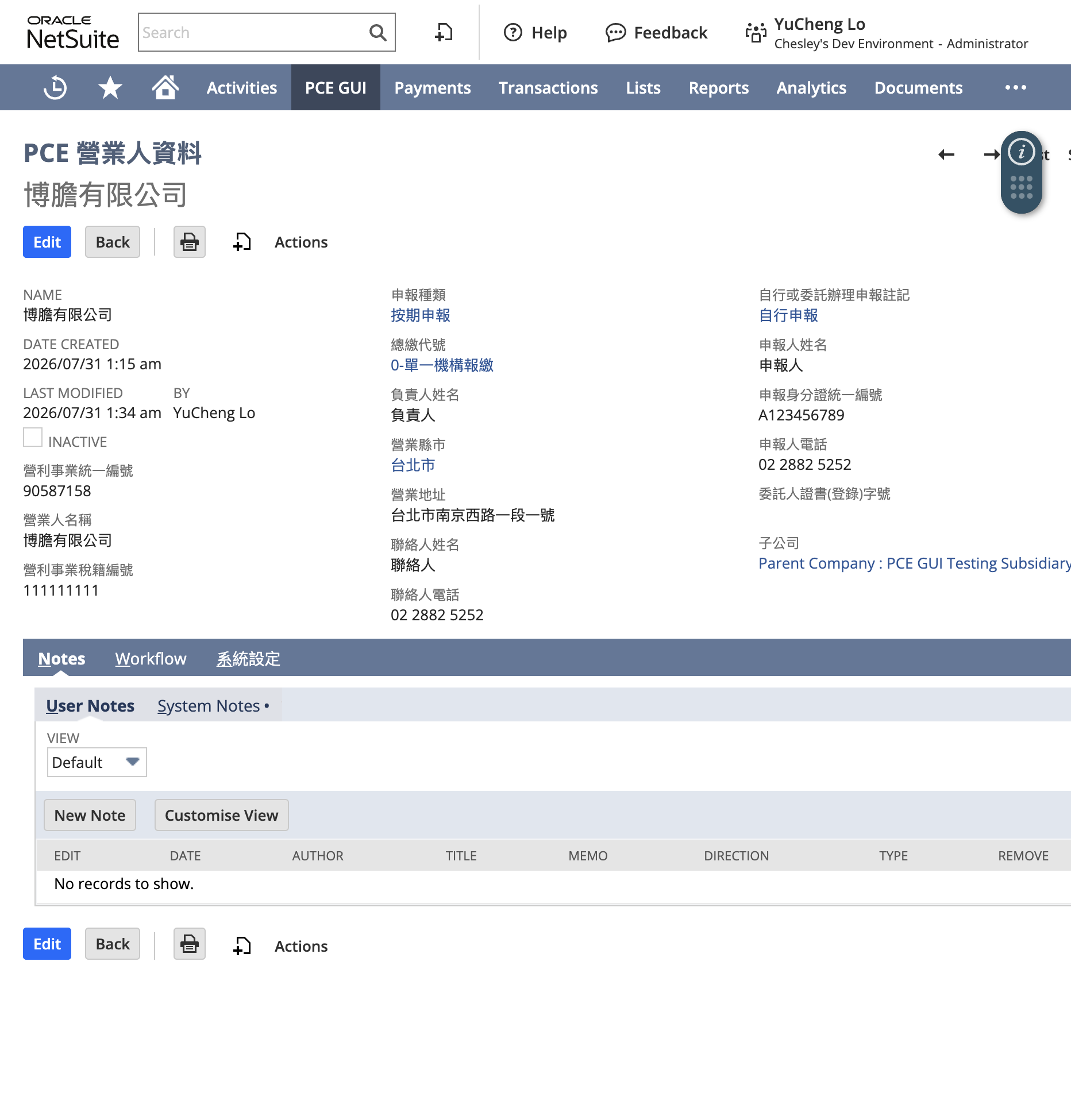
Figure: Sample business info fields (including subsidiary).
Step C — Maintain Vendor / Customer masters
- Open Vendor or Customer.
- Open PCE e-Invoice (or related fields).
- Enter tax ID, invoice title, registered address for validation and (seller) defaults.
Step D — (Optional) External API
- Configure OAuth 2.0 Integration (prefer Client Credentials M2M with RESTlets scope).
- Copy the AP Write RESTlet external URL.
- Follow the integration guide to obtain a Bearer token and call the API.
- Review AP import log entries for each run (linked from the CSV import page; NetSuite list title may still show “PCE AP Write call log”).
Step E — (Optional) Tighten script audiences
In production, restrict Suitelet / RESTlet audiences from “all roles” to accounting / integration roles.
5. Day-to-day usage
5.0 Prepare custom item lines on Invoice / Credit Memo
When accounting needs to rewrite issue descriptions or amounts (instead of using transaction items):
- (Optional) Enter Line remark on the Items sublist (
custcol_pce_ar_line_remark; form setup §3.5.2). - Open Invoice or Credit Memo → PCE 銷項.
- Check 使用自訂商品明細 (Use custom item lines). If the custom sublist is empty, the Client Script seeds from items (includes amount 0 products; skips description, subtotal, and group rows whose amount is 0): item, description, qty, price, amount, tax type, tax amount (5% or item
tax1amt), line remark. - Edit rows on PCE 銷項自訂商品明細; changing amount or tax type recalculates tax (manual tax edits are kept).
- Save. Untaxed total must match
subtotaland tax total must matchtaxtotal(tolerance 0.02). If all line taxes are empty, User Event fills them from tax type before validation. - On issue, the confirm page and PCE AR line records merge rows with the same item + unit price + tax type + description (品名) (sum qty, amount, tax; join remarks with
;). Different descriptions are not merged. The custom sublist on the Invoice still shows original rows for audit. On a foreign-currency Invoice or Credit Memo, custom lines stay in the transaction currency. Issue expands the foreign net by tax type, multiplies by that transaction’s exchange rate, rounds to whole TWD, then splits net and tax. Saved custom lines are not rewritten into TWD. - Unchecking does not clear saved custom lines; issue reads items again.
5.1 Enter AP invoices on a transaction (recommended)
flowchart TD
  start[AP capture] --> path{Choose path}
  path -->|Recommended| trx[Transaction PCE AP sublist]
  path --> list[Stand-alone PCE AP list]
  path --> csv[CSV import]
  trx --> save[Save → create PCE AP records]
  list --> save
  csv --> validate{Validate only?}
  validate -->|Yes| preview[Dry-run result]
  validate -->|No| save
  preview --> csv
流程圖原文
Supported: Vendor Bill, Expense Report, Vendor Credit, Vendor Prepayment.
- Create or open the transaction; select Vendor when applicable.
- Go to the PCE AP Invoice Data subtab / sublist.
- Add a line and enter fields such as:
- Document format code (21–29)
- Document date
- Document period / filing period (ROC 5-digit
YYYMM) - Deduction code, tax type
- Invoice number / other document number (by format)
- Buyer / seller tax IDs
- Sales amount, tax, total
- Summary mark, etc. as needed
- Save. Client scripts assist field behavior; User Event validates on save. On the transaction AP sublist, the buyer tax ID is defaulted from PCE Business Info matched by the header subsidiary. When creating an AP invoice record alone, enter the buyer tax ID manually. The rule list (format, tax ID, tax amount, track, period) is in AP validation rules. UI, CSV, and API share it.
One transaction can link to many AP invoice records (1:N).
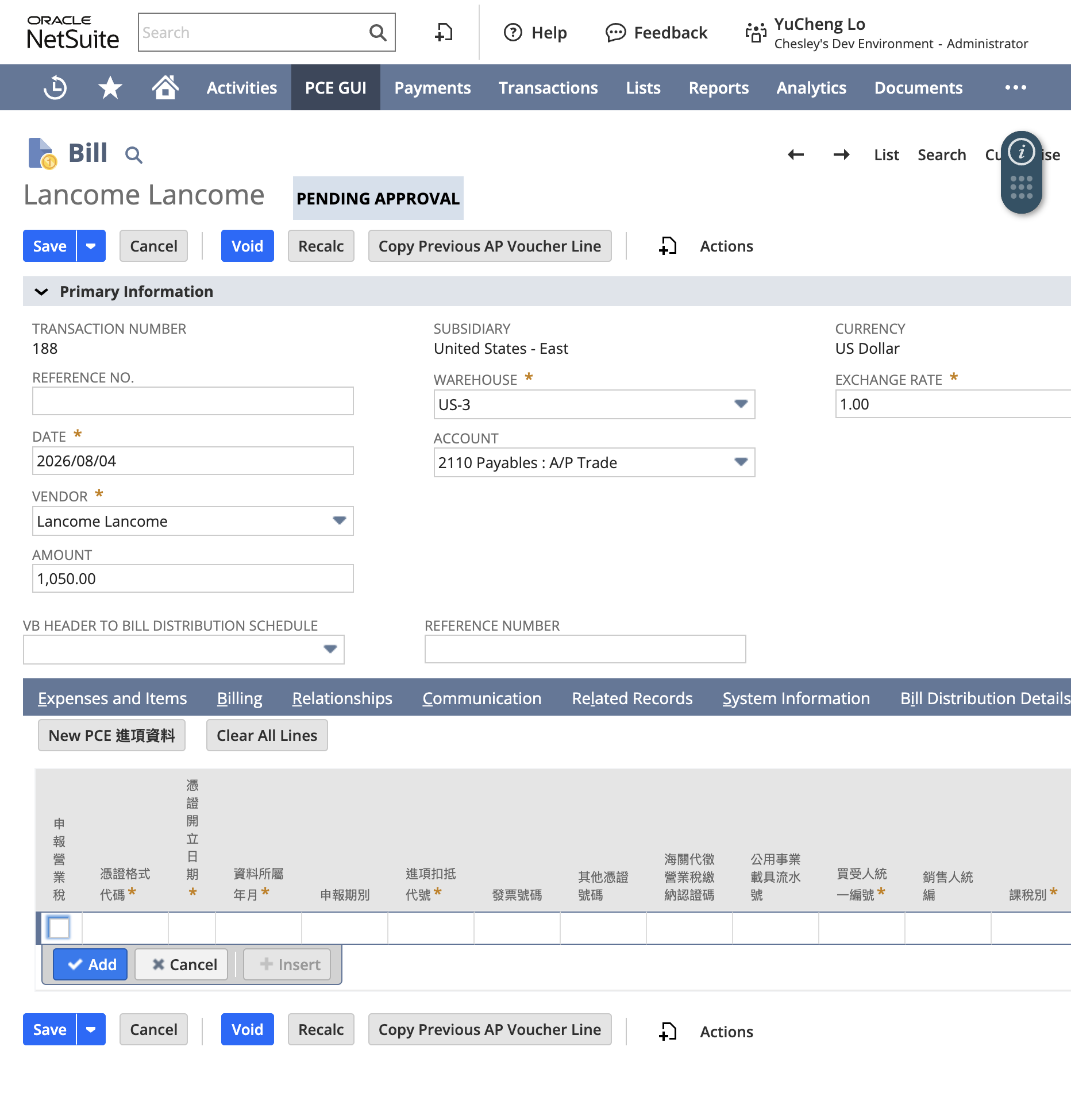
Figure: Vendor Bill → PCE AP Invoice Data sublist.
5.2 Maintain the AP invoice list directly
- PCE GUI → Purchases → PCE AP Invoices
- New / Edit.
- Optionally set Source Transaction to an existing Vendor Bill, Expense Report, Vendor Credit, or Vendor Prepayment; or leave unlinked and create AP invoice data only.
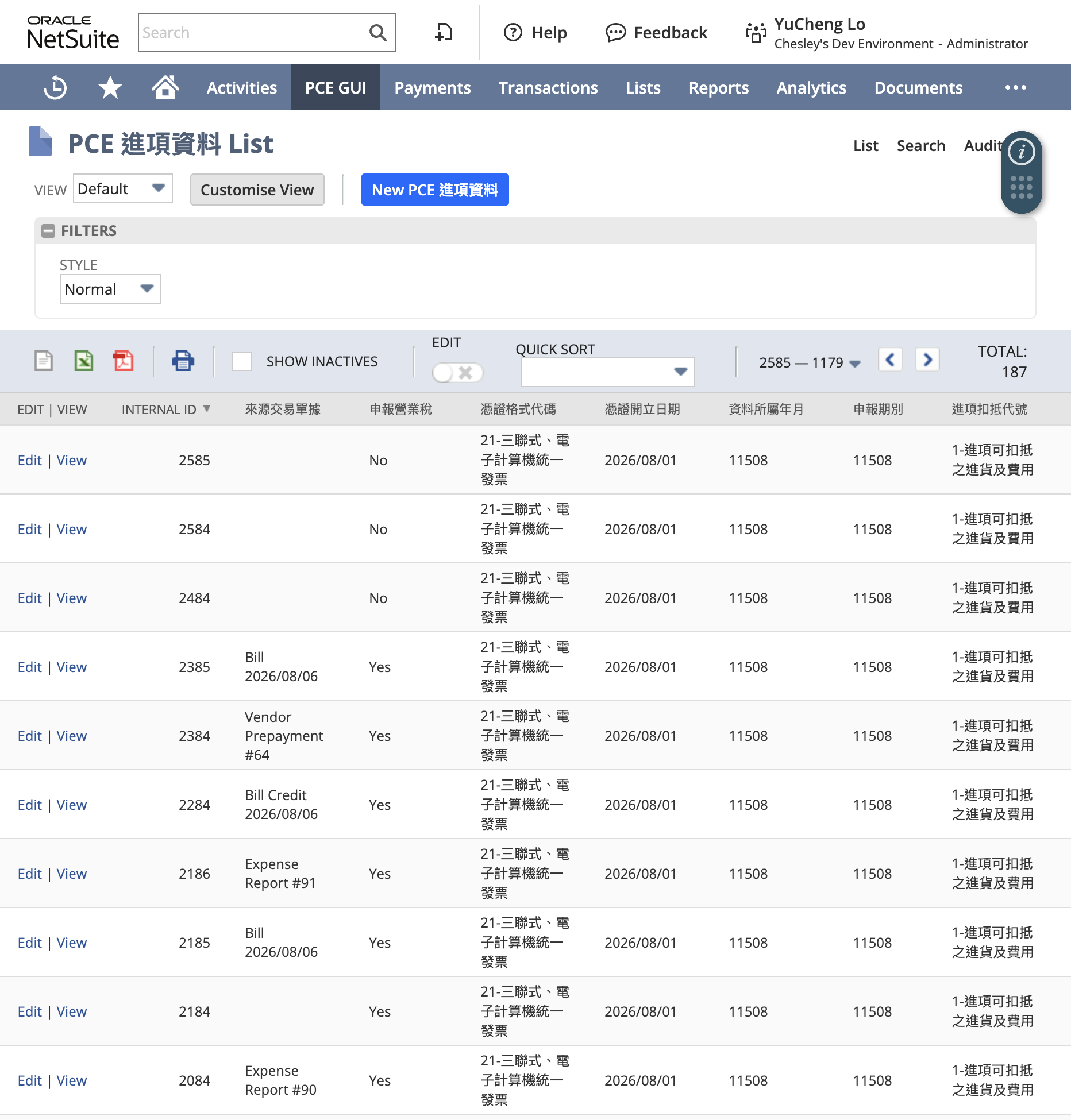
Figure: PCE AP Invoice list.
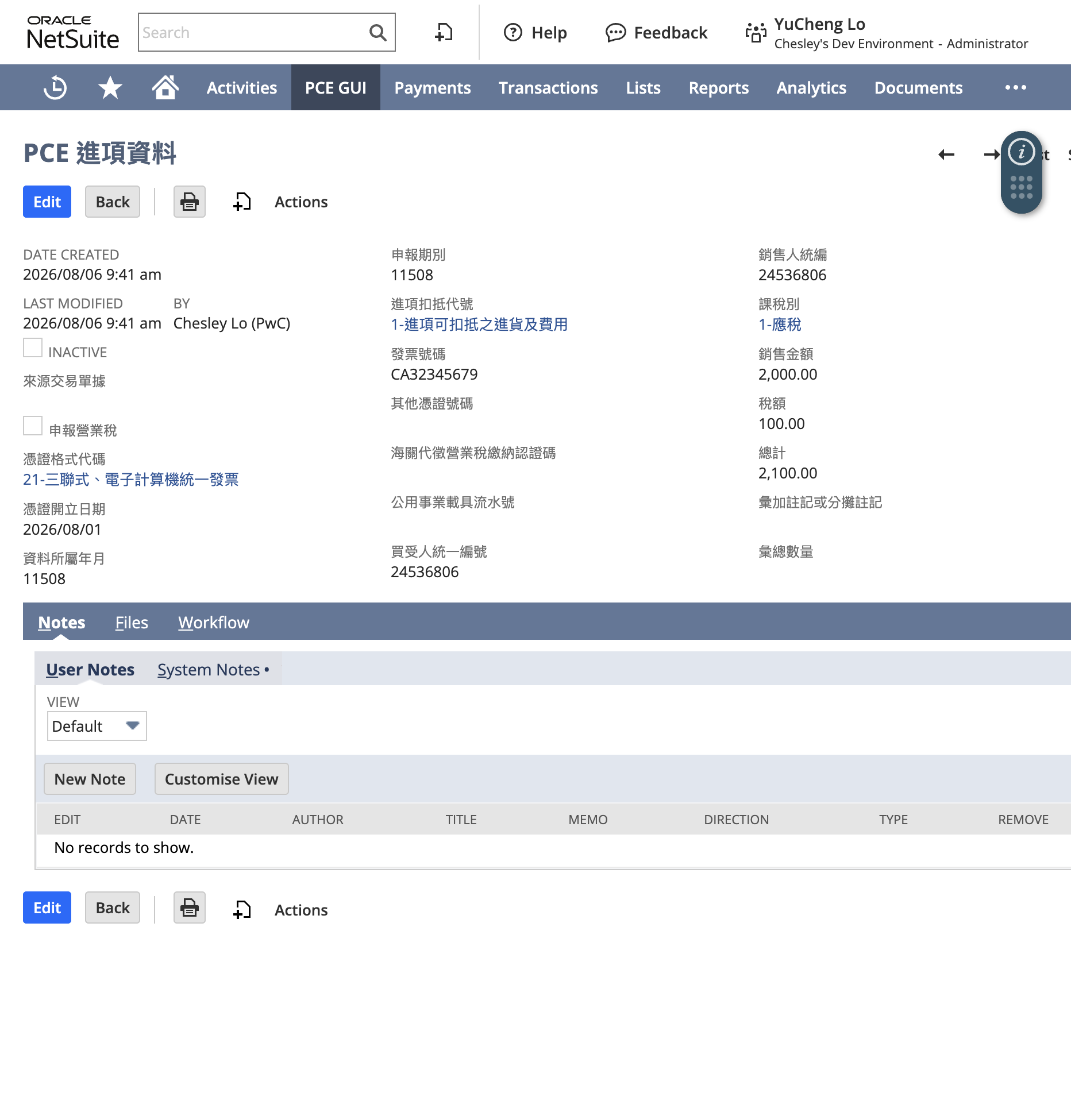
Figure: Sample AP invoice fields (format, tax IDs, amounts).
5.3 CSV import
- PCE GUI → Purchases → AP CSV Import
- Optionally download (handbook or this page):
- Template CSV (
action=template) - Field guide CSV (
action=guide) - Invoice category map (
action=invcatmap)
- Template CSV (
- Fill in Excel/spreadsheet, then Save As CSV (prefer CSV UTF-8 to avoid garbled Chinese), or paste CSV text on the page.
- (Recommended) Check Validate only (dry run, no records created) first; uncheck for a real import.
- Click Import to create PCE AP invoice records.
- After import, the browser is redirected to a GET result page (
action=resultwith AP import log id). Refreshing the page does not resubmit the CSV. - Review the result summary (failures first), download failed rows if any, open successful invoice links, and open AP import log for audit (Import batch id and Result code under Advanced).
- Limit: max 100 rows per submission.
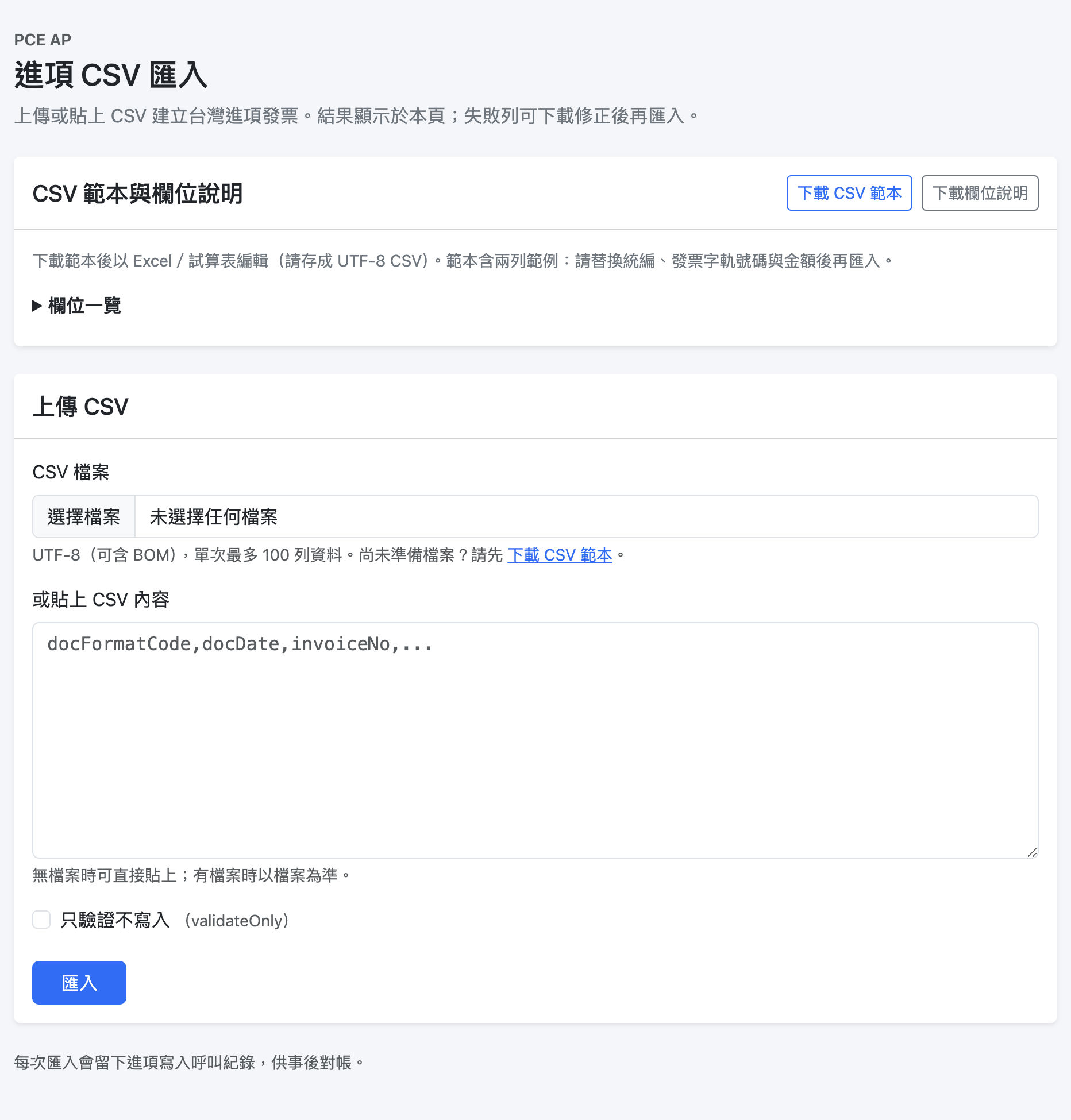
Figure: AP CSV Import (template download, upload/paste, validate only).
Common CSV columns (summary)
| Field | Required | Notes |
|---|---|---|
docFormatCode | Yes | 21–29; formats 21 and 25 require invCatCode when using code alone |
invCatCode | Conditional | Invoice category code; required for ambiguous codes (21: 01/05; 25: 06/07) |
docDate | Yes | YYYY/MM/DD or YYYY-MM-DD |
docPeriod | Yes | ROC 5-digit period |
filingPeriod | Yes | ROC 5-digit filing period |
deductionCode | Yes | 1–4 |
invoiceNo | Conditional | Usually required |
buyerTaxId | Yes | 8 digits |
sellerTaxId | Conditional | Format-dependent |
taxType | Yes | e.g. 1 / 2 / 3 / F / D |
salesAmount / taxAmount / totalAmount | Amounts | Sales and tax follow validation rules. Total is not validated |
fileBizTax | Optional | Include in VAT filing |
filed | Optional | Already filed. true / T checks the box. Update existing rows with NetSuite CSV import using field ID custrecord_pce_ap_tax_filed |
clientRef | Optional | External reference |
transaction | Optional | Link to an existing NetSuite transaction (internal id required; ask IT) |
See docs/samples/ap-invoice-import-sample.csv and the on-page field guide for full detail.
5.4 API write (system integration)
Typically run by IT / vendors:
| action | Purpose |
|---|---|
apInvoiceOnly | Create AP invoices only |
transactionOnly | Create/reference transactions (max 10) |
transactionWithApInvoices | Transaction + invoices (1:N) |
This package has only the three actions above. API intake review and purchase requests (custompurchase_dfo_purchase_req) are not included.
- POST only + OAuth 2.0 Bearer
- API option
options.validateOnly: truematches the UI Validate only (dry run, no records created)
Details: integration guide.
5.5 Issue AR invoice / allowance (Phase 1)
Full allocation flow, filters, and error codes: AR invoice numbering (ZH).
flowchart TD
  prep[Prepare Invoice/CM §5.0] --> search[Search or header button]
  search --> select[Select source rows]
  select --> mode{Issue mode}
  mode -->|Invoice only| inv[Single / merge issue]
  mode -->|Credit memo only| allow[Allowance 33/34]
  mode -->|Both| net[Net invoice]
  inv --> form[Confirm format / date / allocation]
  allow --> form
  net --> form
  form --> num[Resolve number]
  num --> ok[Create PCE AR + write back NS]
流程圖原文
flowchart TD
  start[Confirm format + upload flag] --> fmt{Format?}
  fmt -->|36| gen["System SEUI number<br/>Sales Exempt from Uniform Invoices"]
  fmt -->|35 + upload| auto[Auto-allocate from book]
  fmt -->|35 no upload / 31 / 32| manual[Manual + reverse lookup]
  fmt -->|33/34 allowance| allowNum[Manual number or business prefix plus timestamp]
  auto --> ok[Success write-back]
  manual --> ok
  gen --> ok
  allowNum --> ok
流程圖原文
- PCE GUI Portal → Sales → Issue invoice / allowance (開立發票/折讓單). You can also click 開立銷項發票 on an unissued Invoice, 開立折讓單 on an unissued Credit Memo, or 開立銷項發票 on an unissued Customer Deposit (convert deposit to invoice). The header button opens the same Portal: the confirm page is on the right, and the sidebar starts collapsed (use ☰ to expand). The button is hidden after the document already has an invoice number or invoice status.
- Set filters (tax ID / customer / department / class / NetSuite invoice # / NetSuite credit memo # / dates) and click Search (查詢).
- Lists include only sales invoice or credit memo rows where:
- Issue invoice = Yes
- Invoice status is empty
- Locked = No
- Invoice number is empty
- NetSuite status is not Voided or Rejected. Those documents stay off the list and hide the issue button. Open and Paid In Full documents can still be issued.
- Click a result column heading to sort; click again to reverse. The checkbox column does not sort. 課稅別 on each row is 應稅, 免稅, 零稅率, or 混合稅 (from the lines that will be issued; more than one non-zero tax type is mixed. Checked Use custom item lines reads custom lines; otherwise it reads item tax codes). Select rows and issue:
- Invoice only: single or merged issue
- Credit memo only: Issue allowance (開立折讓單; offsets already issued invoices)
- Invoice + Credit Memo: Issue net invoice (開立淨額發票)
- On the issue form, confirm document format, upload via value-added center, and invoice / allowance number. Invoice-only issue excludes 33 / 34. Issue allowance shows only 33 / 34; the allowance number can be typed or left blank (prefix from PCE business system settings, blank prefix means timestamp only). Format 33 can upload via the value-added center. Allowance forms omit carrier / donation fields and require the original invoice number being offset. When the tax type is zero-rated, the confirm page also requires customs clearance mark (1 not via customs, 2 via customs) and zero-tax reason (71–79). Allowances omit both. Those two values are stored on the AR master and written to the upload TXT. The same page can also take an optional export declaration category (pick from the list, for example G5 domestic goods export), export declaration number (14 letters or digits), export or FX settlement date, supporting document name, and supporting document number. Blank is allowed. They stay on the master and are not written to the upload TXT. Invoice department / class / custom book profile default to Unspecified. Unspecified matches only books that leave the same field blank. If module settings bind department or class, the confirm page fills that value from the invoice; it can be changed back to Unspecified. Custom profile stays Unspecified. List filters for department / class do not become the allocation default. If Use custom item lines is checked, the confirm page shows custom lines (not transaction items), possibly fewer rows after merge (same item + unit price + tax type + description). Merge issue across multiple sources also merges matching lines when all use custom lines; net issue (invoice + credit memo) does not merge signed lines. On the confirm page, the item description can be edited (max 500 characters). A blank description keeps the original name and is stored on the AR line.
- The system creates a PCE AR invoice data master with line items. From PCE GUI Portal (including a transaction header button), the record opens in a new browser tab and the portal keeps a short summary (date, format, buyer, amounts) with back to the search list. The master is issued; upload status is pending or skipped from the confirm form upload via value-added center flag (§3.2.1), with upload error cleared. Source transactions get invoice status = issued pending upload plus invoice / allowance numbers. When there are many lines, the form previews only part of them; use the saved search PCE AR Issue Item Lines reports to look up the rest by source document.
Custom item lines: See §5.0. Item column Line remark (
custcol_pce_ar_line_remark) seeds into custom lines; save requires header totals to match in the transaction currency; on issue, foreign-currency custom lines are converted to TWD, and same item + unit price + tax type + description merge into one row (custom sublist on the Invoice unchanged and still in the transaction currency).Customer Deposit → AR invoice (Phase 2)
Customer Deposit has no tax code and no item lines in NetSuite. From the deposit View page, Issue AR invoice will:
- Treat the deposit total as tax-inclusive, reverse-calculate using default taxable (5%): net amount (and unit price) rounded to whole currency, tax = deposit total − net (header tax uses this value, not NS deposit header tax 0).
- Prefill one line: description from deposit body Line description (if blank: PCE business system settings → Customer deposit line description when set, else Module system settings), quantity 1; validation only checks net + tax = deposit total.
- Cannot merge or net with Invoice / Credit Memo; one deposit only, from the deposit View page Issue AR invoice (no multi-deposit merge from the issue Suitelet).
- Write back invoice number and invoice status on the deposit (same body fields as Invoice).
- Tax type is fixed taxable 5% reverse calculation (no configurable tax type).
Invoice number rules
| Format and upload | Invoice number | Invoice book |
|---|---|---|
| 36 (sales exempt from uniform invoice) | System generates SEUI (Sales Exempt from Uniform Invoices) + last 10 timestamp digits (14 characters); do not type a number | No book lookup or write-back |
| 35 and value-added center = Upload | System allocates (2-letter track + 8-digit sequence) | Match seller tax ID, format, bi-monthly period from invoice date, allocation filters, and NS→value-added center checked |
| 35 and Do not upload, or paper formats (31 / 32, etc.) | Required manual entry (e.g. CA00000075) | Reverse-lookup the book covering that sequence; only reject if the number is already used |
| 33 / 34 (issue allowance) | Type a number (max 16 characters), or leave blank: business allowance prefix (max 3, optional) + last 13 timestamp digits | No book lookup or write-back |
Auto allocation (35 + upload)
- Search unused/in-use books that are active, match tax ID, period, and format, and have NS→value-added center checked.
- Allocation filter: department, class, and custom book profile must match the invoice book exactly. Unspecified matches only books that leave the same field blank. Selecting department A, class B, and unspecified profile uses only a book with department A, class B, and no profile.
- When several books match, only the smallest internal id is used. If that book fails final validation (invoice date before last issue date, no remaining number, write-back conflict), the form shows an error with the book id and does not try another book.
- On success the book’s
last_noandlast_issue_dtare updated; unused becomes in-use, and a fully used book becomes exhausted. - Invoice date must be on or after that book’s last issue date (same day is allowed; empty last-issue date is unrestricted).
Manual numbers (paper / 35 without upload)
- Number must be 2 English track letters plus a sequence (padded to 8 digits).
- The system finds the book whose track and begin–end range cover the number; no match or more than one covering book fails—narrow tax ID / period / format if needed.
- A number already used on an AR master or on Invoice / Credit Memo is rejected.
- Manual entry does not require continuity with
last_no. After success,last_nobecomes the greater of the previous last number and this number, and last-issue date is updated.
5.6 Invoice book management
How numbers are allocated or reverse-looked up at issue is in §5.5. This section covers creating and updating books.
- PCE GUI → Module Settings → Invoice book management (three tabs: Search / Update books, Manual entry, CSV import; search tab opens by default)
- Search / Update books: pick tax ID (required) to list that company’s invoice books; ROC period, format, and NetSuite→value-added center are optional filters. When a format is selected and it is not format 35-07 (general VAT e-invoice), the NS→value-added center filter is No only. To change department, class, or profile, select rows and use Bulk adjust allocation, or Adjust allocation on one row (over 25 books runs in the background—re-run the search later to confirm). Click ID to open a single record.
- Manual entry: switch to the Manual tab, pick tax ID (same dropdown as search), then format (excludes 33/34/36; invoice category is read-only after format selection), period, track, begin/end numbers (same rules as CSV). For 35-07, choose Transmit to VAC via NS (same as CSV
nsToPlatform; Yes required for auto numbering on issue 35 + upload). Optionally set department, class, and custom invoice book profile (same options as search/update). Status defaults to unused. Check Validate only (dry run) if needed, then Create invoice book. - CSV import: download the CSV template, field guide, and invoice category code mapping (download filename includes invCatCode); fill in Excel, Save As CSV (prefer CSV UTF-8), upload or paste; check Validate only first if unsure.
- After import or manual create, the browser is redirected to a GET result page (
action=resultwith invoice book import log id). Refreshing does not resubmit. - The result page shows Creating invoice books… (with spinner), then success/failure summary; detail rows update to invoice book links when background processing completes.
- Successful rows link to new PCE invoice book records; download failed rows (including failed background segments), fix, and re-import.
- Limit: max 100 CSV rows; No Name field; empty status defaults to 0 (unused). Writes run in the background and are logged in Invoice book import log; Background job id and other technical fields are under Advanced (IT).
- Begin/end suffix rules (last 2 digits after 8-digit padding): Example: one 50-number book
50–99or0–49; three triplicate books0–149.- beginNo: multiple of 50 (00 or 50)
- endNo: multiple of 50 minus 1 (49 or 99)
- Auto-split: one row may span multiple books via
beginNo/endNo, split byinvCatCode: Total count must be a multiple of the book size (e.g. invCat 01, 0–149 → 3 books).- Manual (01 triplicate, 02 duplicate, 05 computer) and e-invoice (07): 50 per book
- POS (03 duplicate POS, 06 triplicate POS): 250 per book
- No duplicates: after the split, a book whose period, track, and begin/end already exist (including inactive books) is skipped. The other books from the same row are still created. When the same range appears twice in one file, only the first book is created.
Sample: docs/samples/ar-invoice-book-import-sample.csv Invoice category mapping: docs/samples/ar-invCatCode-mapping.csv (formats 31 / 32 / 35 require invCatCode to disambiguate)
Common CSV columns (summary)
| Field | Required | Notes |
|---|---|---|
taxId | Yes | 8-digit tax ID; must exist in PCE business info (customrecord_pce_business_info) |
invCatCode | Yes | 01–08; format 31: 01/05; 32: 02/03; 35: 06/07 |
docFormatCode | Yes | AR format 31–36; 31/32/35 need invCatCode or docFormatName |
period | Yes | ROC 5-digit YYYMM |
track | Yes | 2-letter uppercase track |
beginNo / endNo | Yes | 8-digit; begin suffix 00/50, end suffix 49/99; may span multiple books (see §5.6) |
statusCode | Optional | 0 / 1 / 2 / 9; default 0 |
profileName | Optional | Custom book profile name or id |
nsToPlatform | Optional | Only for 35-07; all other formats import as false (CSV value ignored) |
paperInvoice | Optional | Set on import: 35-07 → false, all others → true (CSV value ignored) |
remark | Optional | Long-text remark |
clientRef | Optional | Reconciliation reference |
5.7 Void AR invoice / allowance
- PCE GUI Portal → Sales → Void invoice / allowance (Suitelet
customscript_pce_sl_ar_void; search → void details → confirm). - Filters include subsidiary, customer, invoice / allowance number, document date range, etc. Results list only masters with status = issued (not draft or already void), ordered by document date, oldest first.
- Enter void date (must fall in the current filing period), void reason (required, max 20 characters), and choose:
- Void: master void; updates the linked NetSuite Invoice or Credit Memo per document kind. A Customer Deposit source only gets its invoice-status field updated; the deposit itself is not voided.
- Void and reissue: master void (allowance void still reverses credited amounts on the original invoice). The source Invoice, Credit Memo, or Customer Deposit keeps the transaction, but invoice / allowance numbers, status, error message, and lock are cleared so it can be issued again.
- Upload gate on the master (§3.2.1): issued status and upload status success or skipped (no upload). Pending, in progress, or failed upload blocks void.
- Period rules (invoice and allowance): the current bi-monthly period can be voided. Through the 15th of an odd month (inclusive), the previous period can still be voided. On 15 November, period 11510 (September–October) is still voidable; from 16 November it is not. Invoices with credited amounts or open allowances must clear those first.
- After success: master void; upload status stays skipped if it was skipped before void, otherwise reset to pending. Both void and void and reissue enqueue a void upload when the status becomes pending, even if the source transaction void fails. A void-and-reissue upload, including in-progress and ACK, updates only the master. Error message cleared; void date / time / reason stored.
5.8 Background auto-issue and progress
For multiple Invoices queued for background issue (fixed 35-07, transmit via value-added center). See 銷項背景自動開立發票(Phase 7) (ZH).
- PCE GUI Portal → Sales → Background auto-issue. The standard issue confirm page does not offer background issue.
- Search and eligible rows match §5.5 (issue flag, empty status, not locked, no invoice number, etc.); Invoice only, max 25 rows per submit.
- Optional specified issue date, department / class / custom book profile on the list (default Unspecified). All three must match the invoice book exactly; Unspecified matches only books that leave the same field blank. If department or class binding is on, Unspecified uses each invoice’s own value. Background auto-issue does not collect customs mark, zero-tax reason, export declaration, or supporting documents. Issue a zero-rated invoice from the standard confirm page.
- Next (background issue) → confirm → Submit background issue. Invoices lock immediately (
custbody_pce_ar_inv_status= background auto-issue) and rows enqueue for Map/Reduce. - On success the UI shows only Background auto-issue submitted → View progress and results (link). Batch IDs and Map/Reduce task IDs are not shown. Partial failures add “N row(s) not queued: …”.
- PCE GUI Portal → Sales → Background auto-issue progress tab: filter by created date (UTC+8, default today), NetSuite invoice number, status (no batch ID field). Success rows link invoice number to the PCE AR master; invoice date comes from the master. Auto-refresh about every 45 seconds while rows are pending or processing.
5.9 VAT input/output TXT and zero-rate T02
- PCE GUI Portal → VAT filing → Input, output, and zero-rate (
customscript_pce_sl_vat_filing). The mapped module system setting must have 產報稅檔功能 checked; otherwise the Portal hides this menu. - Choose the business, ROC year, and bi-monthly period. ROC years start at 115. On odd-month dates through the 15th, the page opens on the previous period (15 November stays on September–October; 16 November moves to November–December). Clear Include unused numbers to omit blank invoice numbers. Check Include already filed rows to put input rows marked Already filed into the TXT; leave it clear to leave those rows out.
- Preview counts lists input, output, unused-number, and zero-rate rows, plus items to check.
- Download input/output TXT writes
{taxId}.TXT(81 characters per row). Download zero-rate T02 writes{taxId}.T02(83 characters per row). Input rows are only those marked for VAT filing. Rows marked already filed stay out unless Include already filed rows is checked. Output rows include issued, void, and cancelled documents. Up to 20,000 input or output rows download immediately. Above that, the file is built in the background. Refresh keeps the same business selected, and the background download list appears without previewing the counts again. If Force VAT file background is checked on module system settings, every download uses the background job. A side with more than 100,000 rows does not produce a file. - Fill the 9-digit tax registration number and city on the business record first. These files are not the VAT return form, and they do not print blank invoices.
6. Troubleshooting
| Symptom | Likely cause | Action |
|---|---|---|
| No PCE GUI tab | Role/center/cache | Refresh; check tab audience / More menu |
| Cannot switch Portal feature after collapse | Menu hidden when sidebar collapsed | Click ☰ to expand, then pick the feature |
| Tax type unmapped / cannot issue | NS tax codes not mapped | Module Settings → Tax type mapping for types 1 / 2 / 3 |
| Zero-rated issue rejected | Customs mark or zero-tax reason missing | Required on the standard confirm page when tax type is zero-rated (customs 1/2, reason 71–79). Background auto-issue does not collect these fields |
| Custom-line totals mismatch | Custom untaxed / tax ≠ header | Stay on confirm page; fix PCE Sales amount / tax then retry |
| Line remark missing on Items | Column not on form | Add custcol_pce_ar_line_remark to Invoice / CM Items sublist |
| Issue shows fewer lines than custom sublist | Issue merges same item + unit price + tax type + description | Expected; Invoice custom sublist keeps original rows |
| Issue button missing | Already issued, or empty Audience | Confirm not issued; Script Deployment → Audience |
| CSV all failed | Header/date/tax ID format | Use field guide; download failed-row CSV |
| Garbled Chinese in CSV | Wrong file encoding | Excel → Save As → CSV UTF-8 |
| Invoice number rejected | Track letter not allowed | Check MOF track data / period |
| Auto allocation fails / no book found | Tax ID, bi-monthly period, format, or allocation mismatch, NS→value-added center not checked, or the selected book is exhausted | Check books in Invoice book management; the error names the book id |
| Void rejected: upload status | Master still pending / in progress / failed | E-invoice needs success first; fix master if upload flag was wrong at issue (§5.7) |
| Book id: date before last issue date | Issue date is earlier than that book’s last allocation date | Change the invoice date or the allocation filters |
| Manual number already used | Same number exists on an AR master or NS transaction | Enter a different number |
| Manual number matches multiple books | Overlapping track / range | Narrow tax ID / period / format, or fix book ranges |
| API 401 | Expired token / Integration | Renew token; confirm RESTlets scope |
| Deploy error “script ID already exists” | Unbound account object with same ID | Delete unbound object, then redeploy SuiteApp |
8. Version
| Item | Value |
|---|---|
| SuiteApp | com.netsuite.pceguitw |
| Project name | PCE TW GUI MODULE |
| Manifest version | 1.0.0 |
| Document date | 2026-10-03 |